

 View full size ↗
Eight VBAN audio inputs and two monitor-mix returns for OBS Studio on Windows x64.
An independent plugin by ElkaSoft for OBS Studio.
Receive named VBAN streams directly in OBS. Send the OBS monitoring mix back to two computers, each with its own destination address, UDP port, and stream name.
Download the latest stable release · Try the 0.2.3 pre-release · Installation guide · Report an issue
Free and open source under GPL-2.0-or-later. Donations support development and are optional.
Choose from eight banners — circuit or waves designs, horizontal or vertical, with or without the VoiceMeeter / VB-Audio credit.
Download and install
The files below are the 0.2.3 pre-release. The latest stable version is 0.2.2. Tested with OBS 31.1.1 and OBS 32.2.1 on Windows x64.
| Download | Where it goes |
|---|---|
| obs-vban-audio-0.2.3-windows-x64-setup.exe | Guided installer for standard or portable OBS. Finds installed OBS or lets you browse to its root folder. |
| obs-vban-audio-0.2.3-obs-root.zip | Merge its obs-plugins and data folders into the OBS installation folder. Works with normal and portable OBS. |
| obs-vban-audio-0.2.3-windows-x64.zip | Copy its obs-vban-audio folder into C:\ProgramData\obs-studio\plugins for a normal OBS installation. |
Using the installer
- Close OBS, run obs-vban-audio-0.2.3-windows-x64-setup.exe, and approve the Windows administrator prompt.
- Choose Standard OBS installation (selected by default) or Portable OBS.
- Check the detected standard OBS folder, or click Browse to choose your portable OBS root: the folder containing bin, data, and obs-plugins.
- Click Next, review the paths, then Install. Restart OBS and open Tools → VBAN Audio Settings.
Both installer modes put the DLL and data inside the selected OBS folder. Standard mode adds a Windows Installed apps entry; portable mode keeps its uninstaller in the plugin's data folder. The installer does not install OBS itself or enable OBS portable mode. Your existing scenes, profiles and VBAN settings are preserved.
Already using the root ZIP? Select the same OBS folder to update it. If you used the ProgramData ZIP, remove that plugin copy before switching to the installer. Setup checks the usual ProgramData location in standard mode to prevent duplicate copies. Close all OBS instances before installing or uninstalling.
Manual ZIP installation
Use one layout and keep only one installed copy. Close OBS before copying files. The root ZIP is the simplest option if you already install plugins by merging folders.
For a normal installation, the root layout is:
C:\Program Files\obs-studio\
  obs-plugins\64bit\obs-vban-audio.dll
  data\obs-plugins\obs-vban-audio\locale\en-US.ini
  data\obs-plugins\obs-vban-audio\vban-audio.png
For portable OBS, use the same layout inside its own root folder. Restart OBS and open Tools → VBAN Audio Settings. The ZIPs also include VBAN-INSTALL.txt.
Requires the Microsoft Visual C++ x64 runtime. Uses the OBS installation's own libobs, frontend API and Qt libraries. Do not copy development dependency DLLs into OBS. These builds are unsigned.
Receive VBAN audio in OBS
 View full size ↗
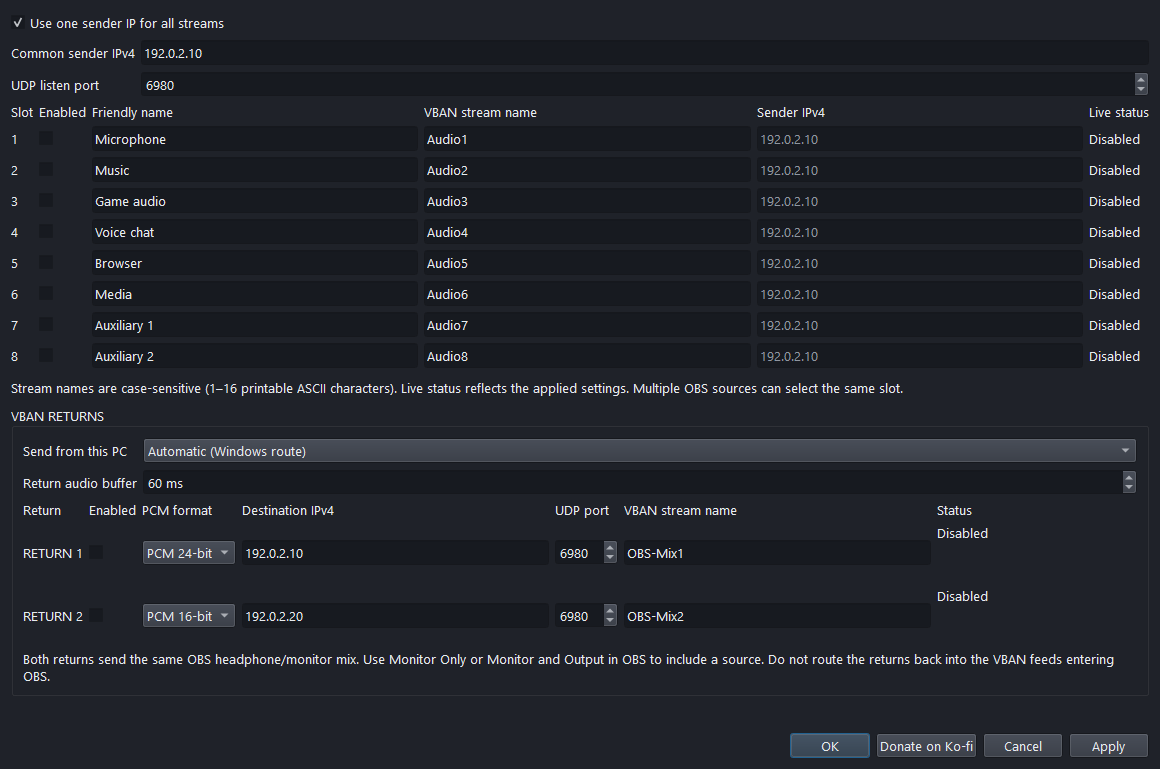
- Open Tools → VBAN Audio Settings.
- Enter the sender computer's IPv4 address and the UDP listen port (default 6980).
- Enable the slots you need. Enter each exact, case-sensitive VBAN stream name. Use Friendly name for the label you want in OBS.
- Click Apply. Configure the sender to send to this OBS computer and the same port.
- Add Sources + → VBAN Audio, then select the configured stream.
The source appears as a normal OBS mixer fader. Default source names adopt the friendly name; manually assigned names are preserved. Multiple sources can select the same slot without creating extra network receivers.
One sender/name pair should occupy one enabled slot. Stream names allow 1–16 printable ASCII characters. The stream dropdown stays open while you select it.
Send the monitor mix back
- Open VBAN RETURNS in the same settings window.
- Under Send from this PC, select this OBS computer's LAN address and adapter. Automatic lets Windows select the route.
- Enable Return 1 and/or Return 2. Choose PCM 16-bit or PCM 24-bit for each return, then enter its destination IPv4 address, incoming VBAN port, and stream name.
- Leave Return audio buffer at 60 ms initially, then click Apply.
- In OBS Advanced Audio Properties, use Monitor Only or Monitor and Output for sources you want in the return. Monitor Off excludes a source.
- In VoiceMeeter, enable an incoming VBAN stream with the matching name, port, and sender IP (the OBS computer).
Both returns carry the same stereo monitor mix, including source filters and fader gains, encoded at their independently selected PCM bit depths. Existing settings retain PCM 24-bit. Changing bit depth does not change the sample rate: with OBS set to 48 kHz, both returns remain at 48 kHz. Each has an independent socket and packet counter.
In tested Windows OBS 32.2.1, the normal program mute button does not mute headphone monitoring, and the return follows that behavior. Use Monitor Off to remove a source from the return. OBS 31.1.1 honors the monitoring capture mute flag.
Returns send silence when no monitored source contributes. Sending means Windows accepted outgoing packets; it does not confirm remote reception. The applied source and destination addresses appear beside each return. An unavailable selected adapter produces an error instead of silently switching.
Avoid feedback: do not feed either received return into a VBAN stream that comes back into OBS.
Buffering and clicks
The return buffer is adjustable from 20 to 200 ms, default 60 ms. Increasing it gives delayed source callbacks more time to arrive, at the cost of additional monitor delay. Try 100 ms if Late audio frames keeps increasing during steady playback. VoiceMeeter's incoming network buffer is a separate setting.
Version 0.2.2 also doubles capture capacity to 128 blocks per monitored source and corrects small source-clock differences through gradual interpolation. It fixes gaps/overlaps at the former 1 ms clock-rounding threshold. The worker requests Windows multimedia audio scheduling priority.
Hover over a return's status to see:
| Counter | What it tells you |
|---|---|
| Capture queue overflows / queue peak | Source capture is outrunning the return worker. |
| Late audio frames | Source audio arrived after its mixing deadline. |
| Clock corrections | Small drift adjustments; increasing normally is expected. |
| Clock discontinuities | Source timestamps jumped or restarted. |
| Clipped samples | The combined mix exceeded full scale. Lower source faders. |
| Invalid float samples | A source/filter supplied non-finite audio. |
| Socket errors | Windows rejected an outgoing packet. |
| Send gaps over 20 ms / largest gap | The local sender paused or was delayed. |
Compare changes during steady playback. Startup, source changes, and Apply can affect counters. Audio counters follow current source lifetimes; send/clipping counters reset when return settings are applied. A quiet upstream source is valid silence, so these counters cannot identify every audible problem.
If local counters stay steady but VoiceMeeter reports reception errors, check the network and receiver, including its VBAN network-quality/buffering setting. Clean local counters alone do not prove packet delivery. The plugin does not change firewall, VPN, router, or audio-device settings.
Supported input audio
Unsigned PCM8; signed PCM16/24/32; Float32 and Float64; one to eight channels. Seven channels are padded to eight for OBS's 7.1 layout. Channel order is preserved. Compressed/non-audio VBAN, invalid payloads, non-finite floats, and more than eight channels are rejected. Packet parsing checks the 28-byte header and 1464-byte limit.
The eight-input receiver retains its existing 30 ms jitter target and approximately 10 ms output blocks, independently of the new return buffer. It tracks lost, reordered, duplicate, late, invalid and unsupported packets plus under/overruns. Missing input packets can cause silence and clicks upstream of the return. No buffer reconstructs audio that never arrives.
Support and credits
Use GitHub Issues for bug reports. Include OBS/plugin versions, sample rate, return buffer, and which counters increase. Remove private addresses or other personal information from logs before posting.
Donate on Ko-fi, or use the Donate button in Tools → VBAN Audio Settings.
Built on the official OBS plugin template and the public OBS source API. Implements the VBAN PCM specification directly; no VoiceMeeter Remote DLL is required.
Independent community project; not an official OBS Project or VB-Audio product. GPL-2.0-or-later; see LICENSE.
For source code, build instructions, and development documentation, visit the project on GitHub.