
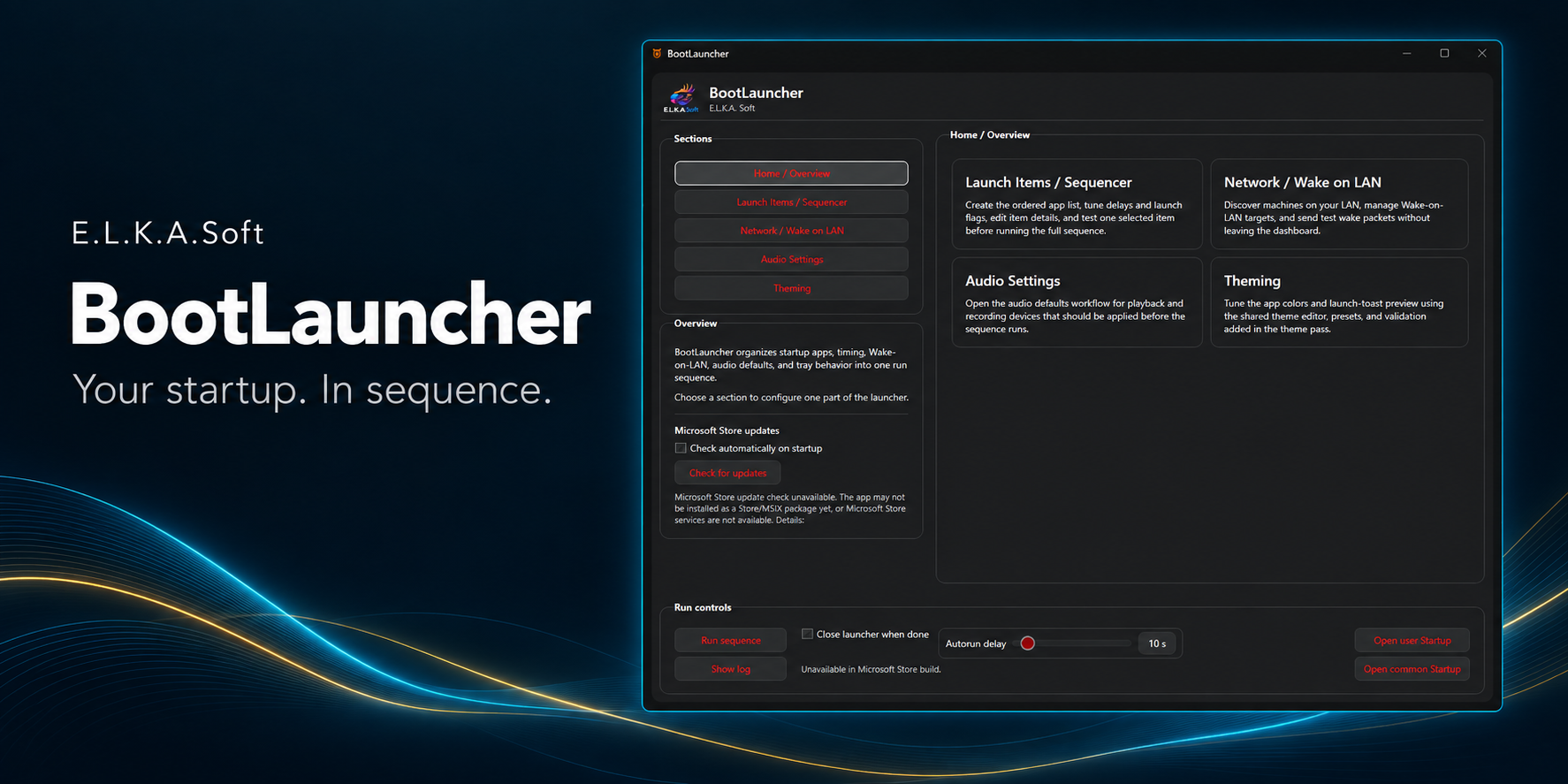
Your startup, in sequence
Bring your Windows startup routine into one place. Arrange your apps in order, give each one time to start, and prepare your workspace before the full sequence runs.
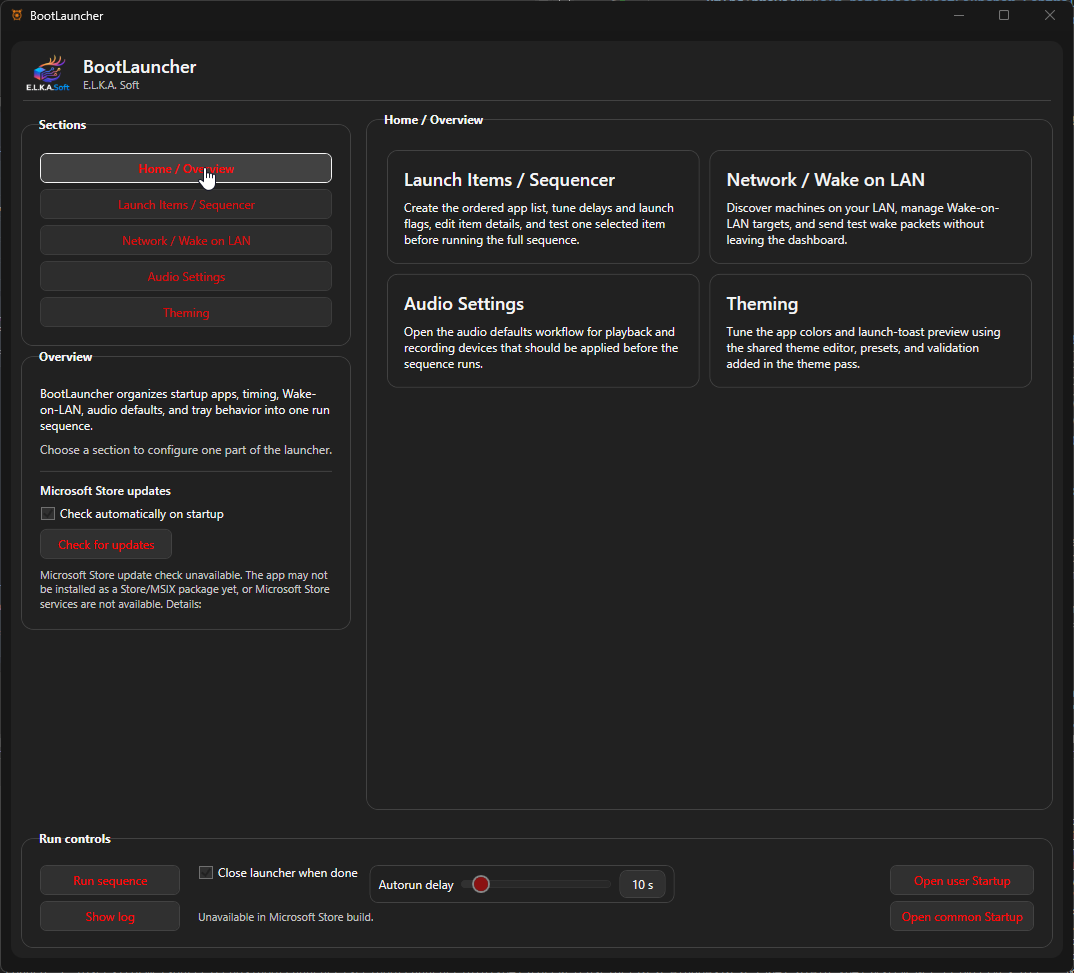
BootLauncher includes an app sequencer, local Wake-on-LAN tools, saved audio defaults, and appearance settings in a tray-friendly desktop dashboard.
Install from Microsoft Store
- Open Elka BootLauncher in Microsoft Store.
- Check the current price and device requirements on the Store listing, then follow the Store's purchase and installation steps.
- Open BootLauncher from the Windows Start menu.
The Store listing provides the current available version. Install and update the Store edition through Microsoft Store; a separate GitHub installer is not needed.
Set up your launch sequence
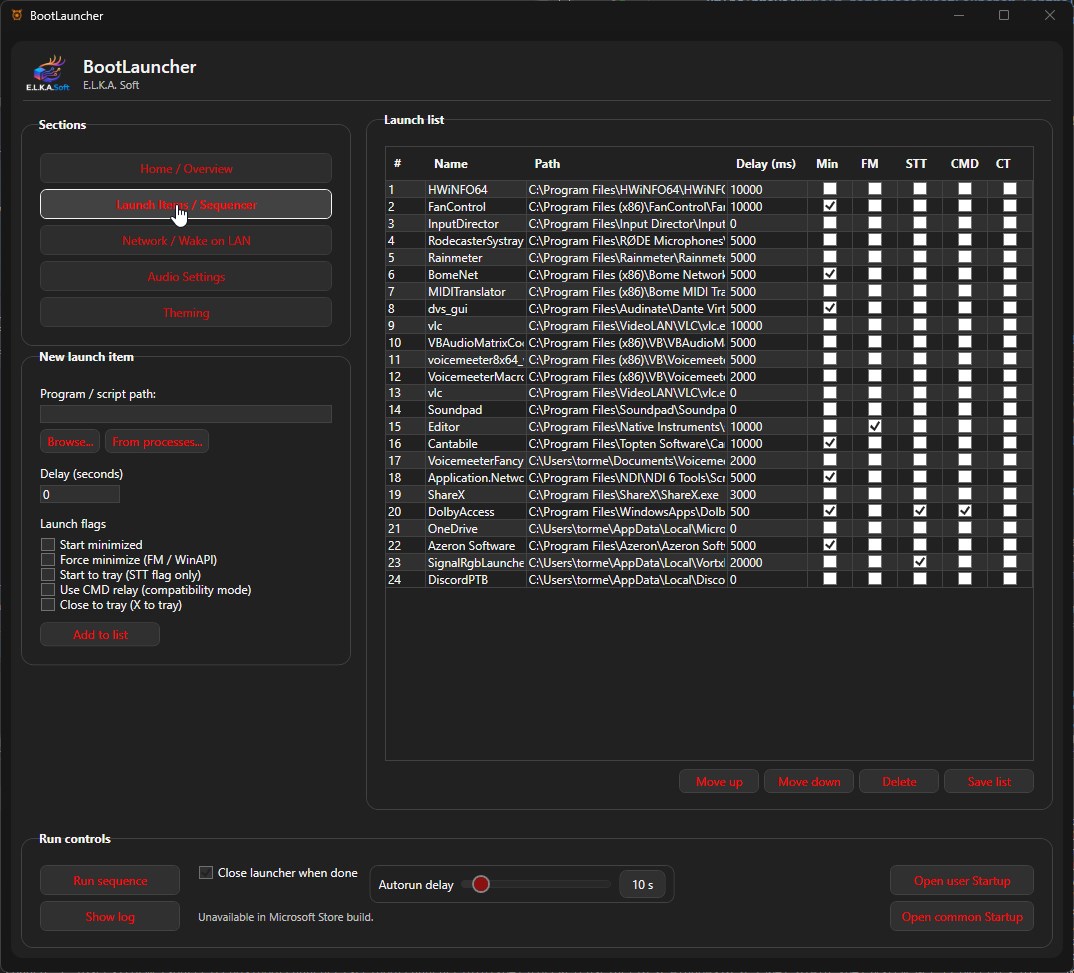
Open Launch Items / Sequencer to add an application or script. Browse to the program, or choose a running process, then set its delay and launch options.
Arrange the entries in the order you want them to start. Test individual items, save the list, and use Run sequence when you are ready. Start with a small list so you can check the timing before adding the rest of your setup.
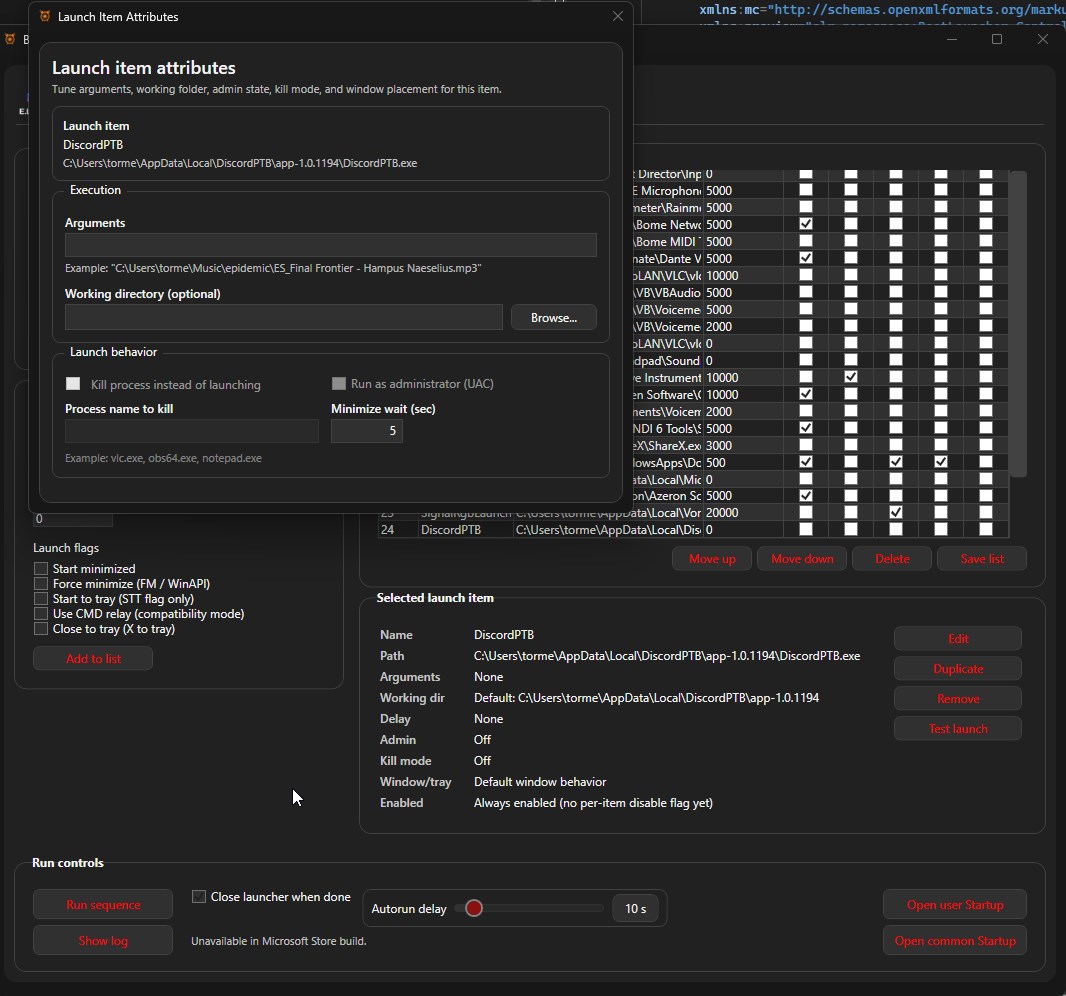
Use each item's settings to adjust arguments, working directory, and supported window behavior. The screenshots below show an example configuration; your own application list and paths will differ.
Prepare your workspace
- Network / Wake on LAN: manage devices on your local network and send wake packets to compatible devices. The target device must support and be configured for Wake-on-LAN.
- Audio Settings: choose saved playback and recording defaults to apply before the sequence runs.
- Theming: customize the dashboard colors and launch-toast appearance.
- Tray behavior: keep BootLauncher out of the way while retaining access to your setup.
A closer look
These are the application screenshots published with the Microsoft Store listing. Open any image to view it at full size.
Updates and support
Use Microsoft Store to check for app updates. If BootLauncher's in-app Store check is unavailable, open the Store directly and check for updates there.
For installation or setup help, join the ElkaSoft Discord. Include your app version, Windows version, and the step you were trying to complete.