

Your Windows audio, your way
Choose which input and output devices your applications use, keep your preferred Windows defaults in place, and let Audio Control apply your routing rules in the background.
Audio Control is a standalone Windows audio utility. It does not require VoiceMeeter. Its routing rules are processed locally on your PC.
Install from Microsoft Store
- Open Elka Audio Control in Microsoft Store.
- Check the current price and device requirements, then follow the Store's purchase and installation steps.
- Launch Audio Control from the Windows Start menu.
Use Microsoft Store for installation and updates. The listing shows the current available version and price.
Find the tray icon
Audio Control opens directly into the Windows system tray. A main window does not appear automatically; check the tray's hidden-icons area if you do not see its icon.
Double-click the icon to open the interface. Right-click it for Open, Windows Defaults, Daemon Settings, and Shutdown.
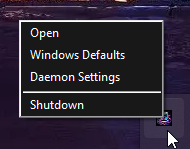
Set up application routing
Open the main interface and select the applications you want to manage. Use + APPS to add entries, then choose the input and output devices for each application in the Routing panel. The interface provides Apply and Save controls for your choices.
The screenshot shows example applications; your running apps and available devices will differ.
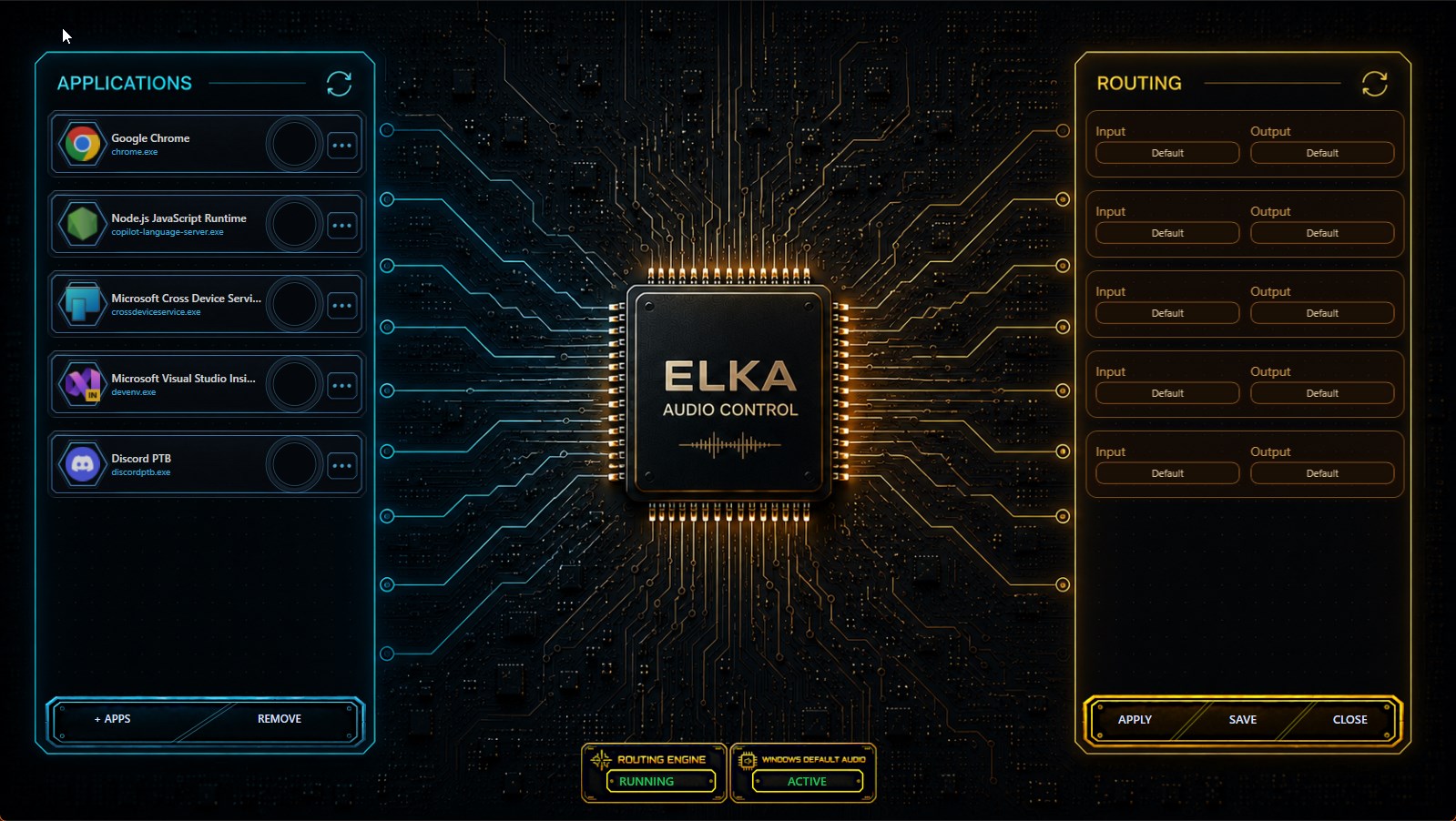
Routing is applied while the target application is active. Microphone routing may only become available after that application starts using its audio input. If an input is missing, start microphone use in the target app and check again.
Keep your preferred defaults
Audio Control can enforce the Windows default audio devices and restore your preferred settings if another application changes them. Open Windows Defaults from the tray menu, or Windows Default Audio in the main interface, to access those settings.
It can also enforce volume levels for default devices. When the default device and communications device are the same physical device, volume enforcement affects both roles. They cannot have separate enforced volume levels on that same device.
Choose background behavior
The background audio engine, AudioDaemon, monitors and applies your rules. In Daemon Settings, choose whether it stays running or stops when the main application closes.
If you want the application and engine fully shut down, disable Run daemon always, then use Shutdown from the tray menu.
Updates and support
Check Microsoft Store for updates. For setup help, join the ElkaSoft Discord.
Include your app version, Windows version, the application you are routing, and the input or output device involved. Mention whether the target application was already playing audio or using its microphone.